
How to Create Professional LinkedIn Banners and Posts — An AI Design Guide
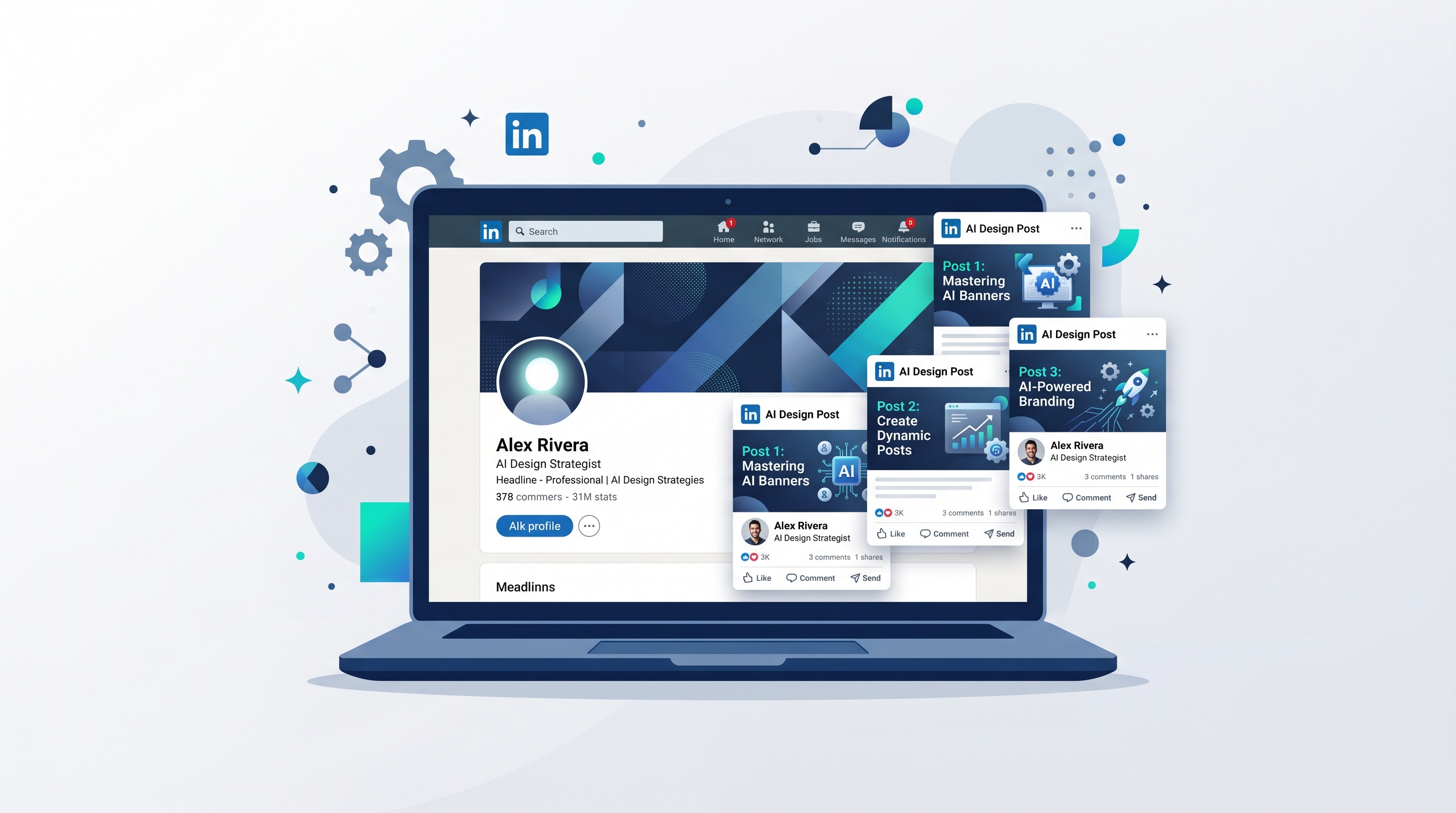
A professional LinkedIn banner is 1584 by 396 pixels for a personal profile and 1128 by 191 pixels for a company page cover; the safest post image is 1200 by 1200 square or 1200 by 627 landscape. Get the dimensions right and the design clean, and your profile reads as credible before anyone has read a word. If you've searched for "linkedin banner design" and keep finding cropped logos and stretched text, this guide gives you the exact sizes, the design rules for each, and an AI workflow to produce a banner plus a matching post set fast.
LinkedIn is unforgiving about cropping. Profile photos and UI panels overlap the banner differently on desktop and mobile, so a layout that ignores the safe zones will hide the very thing you wanted seen. Start from the right canvas and the rest gets easier.
The exact LinkedIn dimensions you need
Use these as your master reference. All are in pixels, and all assume a high-quality export (PNG for graphics with text, JPG for photo-heavy designs).
| Asset | Dimensions (W × H) | Aspect ratio | Notes |
|---|---|---|---|
| Personal profile banner | 1584 × 396 | 4:1 | Profile photo overlaps lower-left; keep that corner clear |
| Company page cover | 1128 × 191 | ~5.9:1 | Logo and name overlay the left side on desktop |
| Single post image (square) | 1200 × 1200 | 1:1 | Best default; maximizes mobile feed height |
| Single post image (landscape) | 1200 × 627 | ~1.91:1 | Good for link-style and quote graphics |
| Document / carousel page | 1080 × 1350 | 4:5 | Vertical pages for swipeable PDF carousels |
A few placement rules that save reworks:
- Personal banner safe zone: your profile photo sits over the lower-left. Keep logos, headlines, and faces in the upper and right two-thirds.
- Company cover safe zone: the company name and logo overlay the left edge on desktop. Put your value proposition center or right.
- Square beats landscape in-feed. A 1:1 image takes up more vertical space on mobile, where most of LinkedIn is read, so it earns more attention per scroll.
- Carousels are PDFs. LinkedIn renders multi-page documents as swipeable carousels; design each page at 1080 × 1350 and export as a single PDF.
Design best practices for each asset
Personal profile banner
Your banner is prime personal-brand real estate that most people waste on a stock landscape. Use it to state who you help and how. Include a short headline (a positioning line, not your job title), your key offer or focus, and one channel or call to action. Keep text in the safe zone, use high contrast, and don't crowd it — a banner read in one glance beats a busy one every time.
Company page cover
The company cover should reinforce a single message: your tagline, a current campaign, or your core value proposition. Because the dimensions are short and wide, type has to be large and minimal. Leave the left side breathing room for the overlaid logo and name, and keep the visual consistent with the rest of your brand.
Posts and carousels
For single posts, lead with one bold idea per image — a stat, a quote, a hook — and keep body text large enough to read on a phone. For carousels, give every page a consistent template: same margins, same header style, same footer. The first page is a thumbnail and a hook; the last page is your call to action. Number the pages so people know there's more to swipe.
Personal brand vs company brand: matching tone
The two voices are different, and your graphics should reflect that.
| Personal brand | Company brand | |
|---|---|---|
| Voice | First-person, opinionated, human | Consistent, polished, on-message |
| Banner goal | Position you as a credible individual | State what the company does and stands for |
| Visual style | A little personality and warmth | Tight adherence to brand guidelines |
| Post tone | Stories, takes, lessons | Value, proof, announcements |
The practical implication: a personal brand can flex tone post to post, but a company page should look identical every time. That consistency is hard to maintain by hand — which is exactly where a brand kit earns its keep.
A step-by-step AI workflow for a banner plus matching posts
You can produce a full, consistent set — banner, square post, and a carousel — in one sitting. Meepo stores your colors, fonts, and logo in a brand kit, then generates each asset on-brand at the correct dimensions, so nothing drifts off-style between pieces.
- Build your brand kit first. Add your logo, two brand colors, and your fonts so every output matches automatically. This is what keeps a banner and a post looking like one brand.
- Generate the banner at 1584 × 396. Prompt for your headline and offer, and tell the tool to keep the lower-left clear for your profile photo.
- Create a matching square post at 1200 × 1200. Reuse the banner's message as a hook so your profile and feed tell one story.
- Build a carousel at 1080 × 1350. Ask for a consistent template across pages — hook on page one, value in the middle, call to action on the last page.
- Review and refine. Tighten copy, check the safe zones, and confirm every asset shares the same colors and type before you publish.
An example prompt for an AI design agent:
Using my brand kit, create a LinkedIn set: (1) a personal profile banner
at 1584x396 with the headline "I help B2B founders fix their messaging,"
keep the lower-left clear for my photo; (2) a matching 1200x1200 post with
the same hook; (3) a 5-page carousel at 1080x1350 on "3 messaging mistakes,"
consistent template, CTA on the last page.
Why this beats doing it manually
| Approach | Time for a full set | Cost | Brand consistency |
|---|---|---|---|
| Freelance designer | Days, plus revision rounds | Hundreds of dollars | High, but slow to update |
| DIY in a generic editor | An hour or more per asset | Low cash cost | Easy to drift off-brand |
| AI design tool (Meepo) | Minutes for the whole set | A few credits per image | Locked to your brand kit |
As a rough guide, a single image is about one credit and a short carousel around six, so a complete LinkedIn launch set costs a handful of credits rather than a designer invoice. The same approach scales to other platforms — if you're repurposing one idea across formats, the brand kit does the heavy lifting.
You can drive all of this from an AI chat you already use: connect Meepo's MCP server with the setup guide and ask for the full set in plain language, or sign up free — no credit card required — and have a draft banner in minutes. For deeper brand setup, it's worth getting your foundations right first; consistency across every asset is what makes a LinkedIn presence look professional.
FAQ
What size should a LinkedIn banner be?
A personal LinkedIn profile banner should be 1584 by 396 pixels, a 4:1 ratio. A company page cover image is 1128 by 191 pixels. In both cases, keep important text and logos out of the areas where your profile photo or company name overlays the image, since those corners get covered by the interface.
What is the best size for a LinkedIn post image?
The best default is a 1200 by 1200 pixel square, because a 1:1 image takes up more vertical space in the mobile feed and earns more attention. A 1200 by 627 landscape image works well for quote and link-style graphics. For swipeable carousels, design each page at 1080 by 1350 pixels and export the set as a single PDF.
How do I make a professional LinkedIn carousel?
Build your carousel as a multi-page document at 1080 by 1350 pixels per page and export it as a PDF, which LinkedIn renders as a swipeable post. Use a consistent template across pages with the same margins, header, and footer, put a strong hook on the first page, and end with a clear call to action. Numbering the pages signals there is more to swipe.
Should my personal and company LinkedIn graphics look the same?
They should share your brand colors, fonts, and logo, but the tone differs. A personal brand can be warmer and more opinionated and flex post to post, while a company page should look consistent and on-message every time. A shared brand kit keeps both visually aligned even when the voice changes.
Can I create LinkedIn banners and posts without a designer?
Yes. An AI design tool like Meepo stores your colors, fonts, and logo and generates banners, posts, and carousels at the correct dimensions, on-brand, in minutes. You describe the message and the asset you want, and the tool produces a draft you can refine, which removes the cost and turnaround of hiring a freelance designer.
What file format is best for LinkedIn images?
Use PNG for graphics that contain text or sharp shapes, since it keeps edges crisp, and JPG for photo-heavy designs to keep file sizes down. Export at the exact target dimensions rather than letting LinkedIn resize for you, which avoids unwanted compression and cropping. For carousels, export the full multi-page set as a single PDF.
Ready to automate your design workflow?
Try Meepo free — AI generates designs instantly, human designers polish to agency quality.
Start Free